Firebase 연결
- 구글 제공 모바일 어플리케이션 개발 플랫폼
- 로그인 인증, (실시간) 데이터베이스, 알림, 스토리지, 배포 서비스 등을 제공한다.
- 사이트에서 새 Firebase 프로젝트 만들기 : https://console.firebase.google.com/?hl=ko
- npm install firebase 로 모듈 설치
- firebase SDK 사용 코드
// firebase.ts

// Import the functions you need from the SDKs you need
import { initializeApp } from "firebase/app";
// TODO: Add SDKs for Firebase products that you want to use
// https://firebase.google.com/docs/web/setup#available-libraries

// Your web app's Firebase configuration
const firebaseConfig = {
  apiKey: "AIzaSyCzjidVR0m_3lhSr2HkENZUm83X8gVlHvo",
  authDomain: "react-task-app-6317a.firebaseapp.com",
  projectId: "react-task-app-6317a",
  storageBucket: "react-task-app-6317a.firebasestorage.app",
  messagingSenderId: "1084638215136",
  appId: "1:1084638215136:web:0a17b543c45020b5894985"
};

// Initialize Firebase
const app = initializeApp(firebaseConfig);

export default app;
Firebase로 로그인 기능 구현 - 구글
빌드 > Authentication > 로그인 방법 탭 > 구글 선택
인증 링크 참조 : https://console.firebase.google.com/project/react-task-app-6317a/authentication?hl=ko
로그인 / 로그아웃 버튼 생성
isAuth는 useAuth() Hooks 만들어서 가져온다.
{/* 로그인 버튼 보이기/숨기기 */}
{isAuth
    ?
    <GoSignOut className={addButton} onClick={handleSignOut} />
    :
    <FiLogIn className={addButton} onClick={hadleLogin}/>
}
로그인 기능 구현
- 로그인 버튼 클릭 시 구글 인증 팝업 띄우기
- userCredential.user로 email, id를 받아 리덕스 스토어 user 데이터에 저장
import { getAuth, GoogleAuthProvider, signInWithPopup, signOut } from 'firebase/auth';
import app from '../../firebase';
import { clearUser, setUser } from '../../store/slices/userSlice';
import { useAuth } from '../../hooks/useAuth';

// firebase 인증 모듈
const auth= getAuth(app);
const provider = new GoogleAuthProvider();

const { isAuth } = useAuth();

const hadleLogin = () => {
    // 로그인 인증 팝업
    signInWithPopup(auth, provider)
    .then((userCredential) => {
      console.log(userCredential);
      dispatch(
        setUser({
          email: userCredential.user.email,
          id: userCredential.user.uid
        })
      )
    })
    .catch((error) => {
      console.error(error);
    })
  }
useAuth Hooks 생성
userSlice에서 user 상태 가져와서 email 유무로 isAuth의 boolean 값 리턴
import { useTypedSelector } from "./redux"

export function useAuth(){

    const {id, email}= useTypedSelector((state) => state.user);

    return {
        // ! : false, !! : true
        isAuth: !!email,
        id,
        email
    }
}
userSlice.ts
import { createSlice } from "@reduxjs/toolkit";

const initialState = {
    email: '',
    id: ''
}

const userSlice = createSlice({
    name: 'user',
    initialState,
    reducers: {
        setUser: (state, action) => {
            state.email = action.payload.email;
            state.id = action.payload.id;
        },
        clearUser: (state) => {
            state.email = '';
            state.id = '';
        }
    }
})

export const {setUser, clearUser} = userSlice.actions;
export const userReducer = userSlice.reducer;
로그아웃 기능 구현
const handleSignOut = () => {
    signOut(auth)
    .then(() => {
      dispatch(
        clearUser()
      )
    })
    .catch((error) => {
      console.error(error);
    })
}
※ Redux devtools 설치
- 개발자도구에 redux 나오게 크롬 확장 프로그램 설치
Firebase로 배포하기
npm install -g firebase-tools
> firebase CLI 사용가능
firebase login
> 구글 아이디로 로그인
npm run build
> dist 빌드 파일 만들어짐
> 타입 에러 나지 않도록 잡아야 한다.
fiebase init
Hosting : github action deploy (선택 : space - enter)
use an existing projects
이름 설정 : reack-task-app
public directory : dist
single page app : y
deploys with github : y
overwrite : n
set up github workflow : 계정명/reack-task-app
run a build script before every deploy : y
script : npm install && npm run build
PR is merged : y
github branch : main
> 파이어베이스 셋팅
깃에 코드 올리기
> 깃허브 action 탭 확인
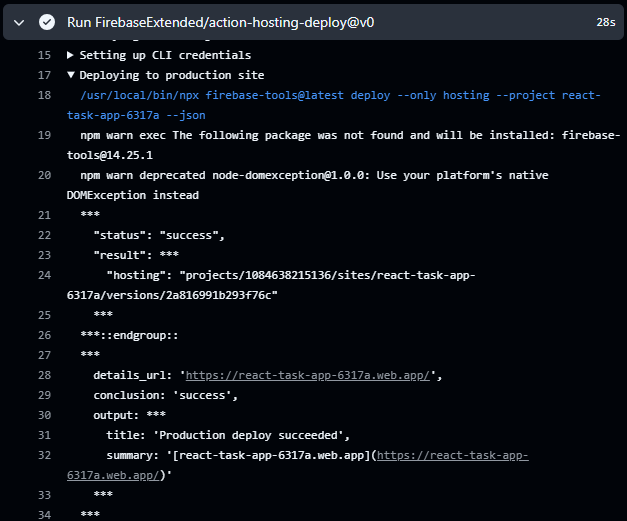
> deploy github : action-hosting-deploy@v0 확인
- deploy github : action-hosting-deploy@v0 에서 url 확인 가능
'프로젝트 > Task 어플리케이션' 카테고리의 다른 글
| 1120 드래그 앤 드롭 기능 만들기 (0) | 2025.11.20 |
|---|---|
| 1119 EditModal, LoggerModal, LogItem 컴포넌트 생성, 게시판 삭제 기능 (0) | 2025.11.19 |
| 1118 Board List 생성, Side Form 생성, Style 생성 - vanilla extract (0) | 2025.11.18 |
| 1117 리액트를 이용한 태스크 정리 앱 만들기 - Vite, Redux 셋팅, Redux Hooks 타입 지정, 전역 스타일 생성 (0) | 2025.11.17 |